
How to Install the iMonnit Mobile App If It Displays "Already Installed"
You can access the iMonnit Sensor Management Portal via a computer or on most smart devices. When navigating to the iMonnit Mobile App download page, you may occasionally encounter a message stating: "Looks like the app is already installed. You can find the app on your Home Screen." If you cannot locate the iMonnit App on your device, you can verify its installation status and manually add it to your home screen using your browser's built-in menu.
Check If the App is Already Installed
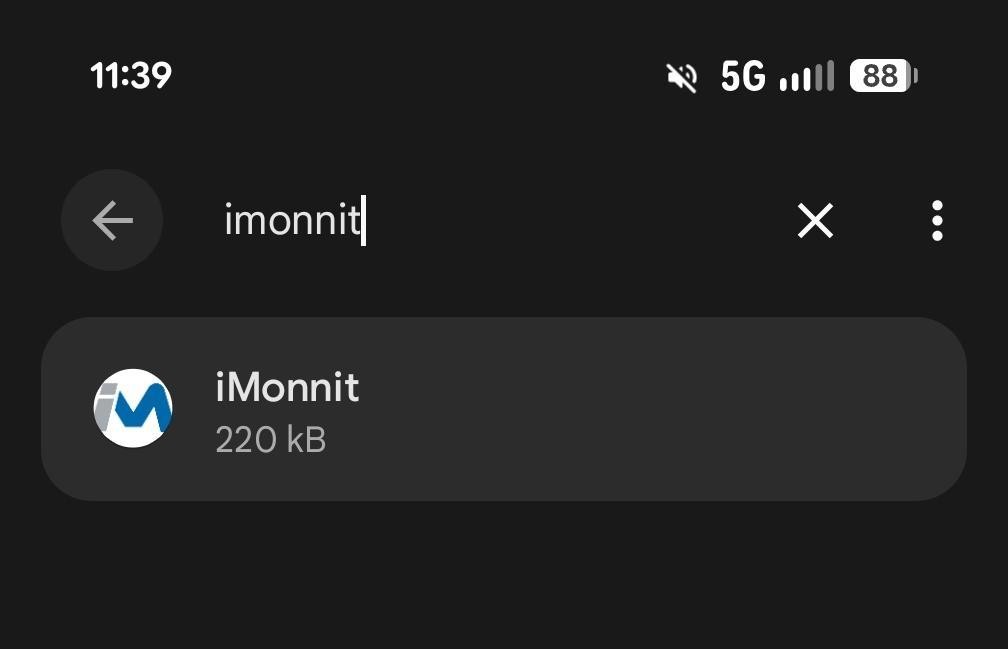
Before attempting a manual installation, you can verify if the iMonnit app is currently residing on your device.
- Open your device's Settings.
- Navigate to the Apps (or Apps & notifications) menu.
- Use the search bar to look for iMonnit.
Manual Installation via Chrome Browser
If you have verified that the app is not installed—or if you simply need to recreate the shortcut—you can bypass the webpage message. Important - Android must navigate using the Chrome web browser.
- Open Google Chrome and navigate to the iMonnit install page
- Click here.
- Select Install.
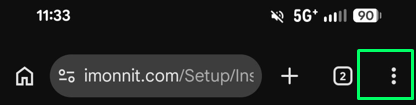
- Select the ellipsis (three vertical dots icon) in the top right corner of the browser to open the menu.
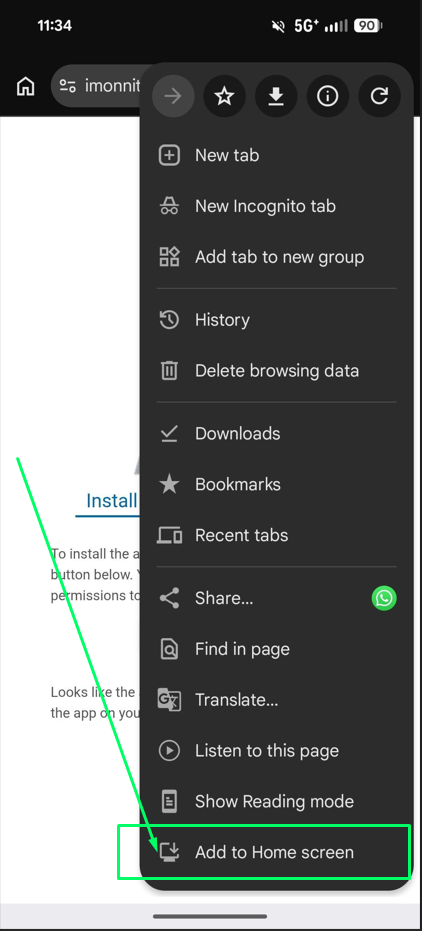
- Scroll down the menu list and select Add to Home screen.
- A menu will slide up from the bottom of the screen. Select the Install option (indicated by the iMonnit logo and a small download arrow).
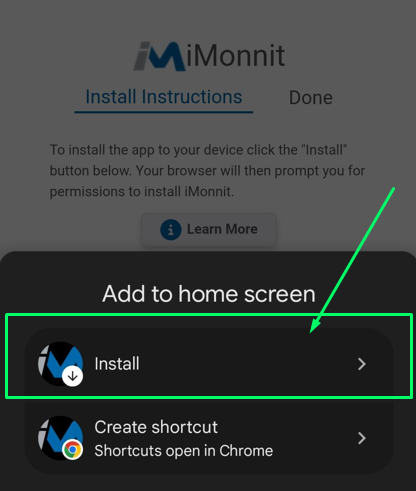
- A final confirmation pop-up will appear on your screen. Select Install.
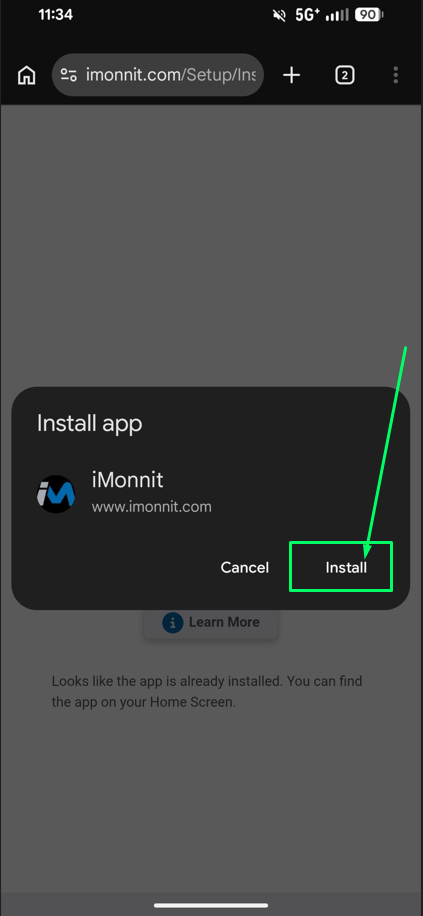
Success! The app has been installed, and the iMonnit icon should now appear on your home screen, giving you fast and secure access to manage your devices from anywhere.